Guide
Everything UmaStudio can do, top to bottom. If something is missing, ask on Discord.
First start
- Download the zip from the latest release on GitHub and extract it anywhere.
- Run
UmaStudio.exe. It opens its own window. - The first start reads the game's file list, which takes a few seconds. A progress bar shows while it loads.
UmaStudio finds the game through Steam by itself. If it says Game files not found, start the game once so it downloads its data. UmaStudio keeps checking and continues on its own.
Characters
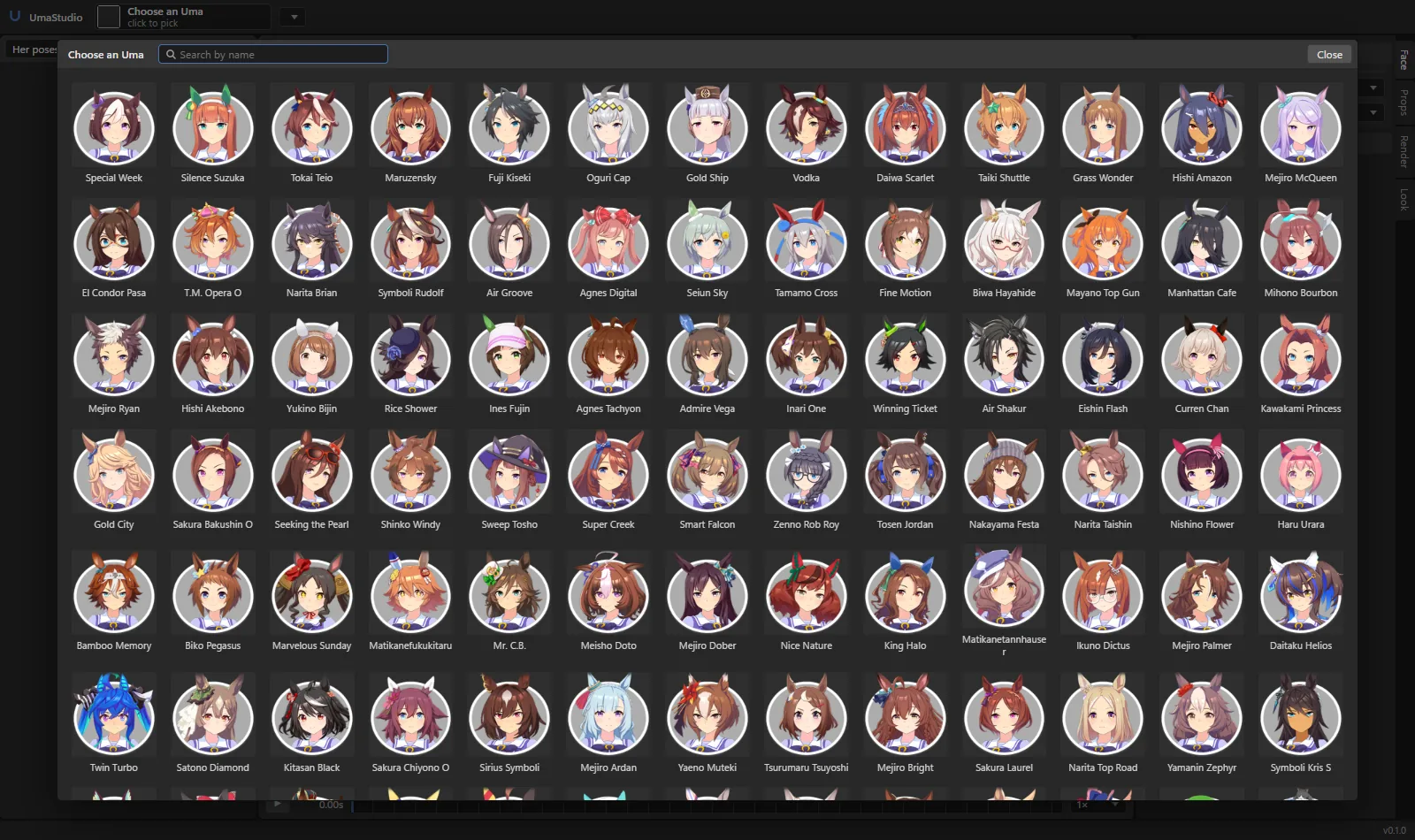
Click Choose an Uma at the top left and pick a character. Type to search by name. The menu next to her name switches the outfit: her own outfits first, then the shared ones (uniforms, tracksuits and so on).
The first time you open a character she is converted from the game files. After that she loads from the cache.
The picker has three tabs. Umas are the main characters. Chibi has their small versions: they pose from the Chibi motions and their faces use the game's chibi expressions. Background Umas are the 800+ characters from races and events, coloured the way the game colours them.
Poses
The list on the left. Pick a category at the top:
- Her poses
- The loaded character's own motions.
- Everyday
- Standing, sitting, phones, food, reactions and lots more.
- Characters
- Motions made for one specific character.
- Victory, Cut-ins
- Race wins and special scenes.
- Dance
- Live concert choreography.
- Home, Training, Story
- Motions from those parts of the game.
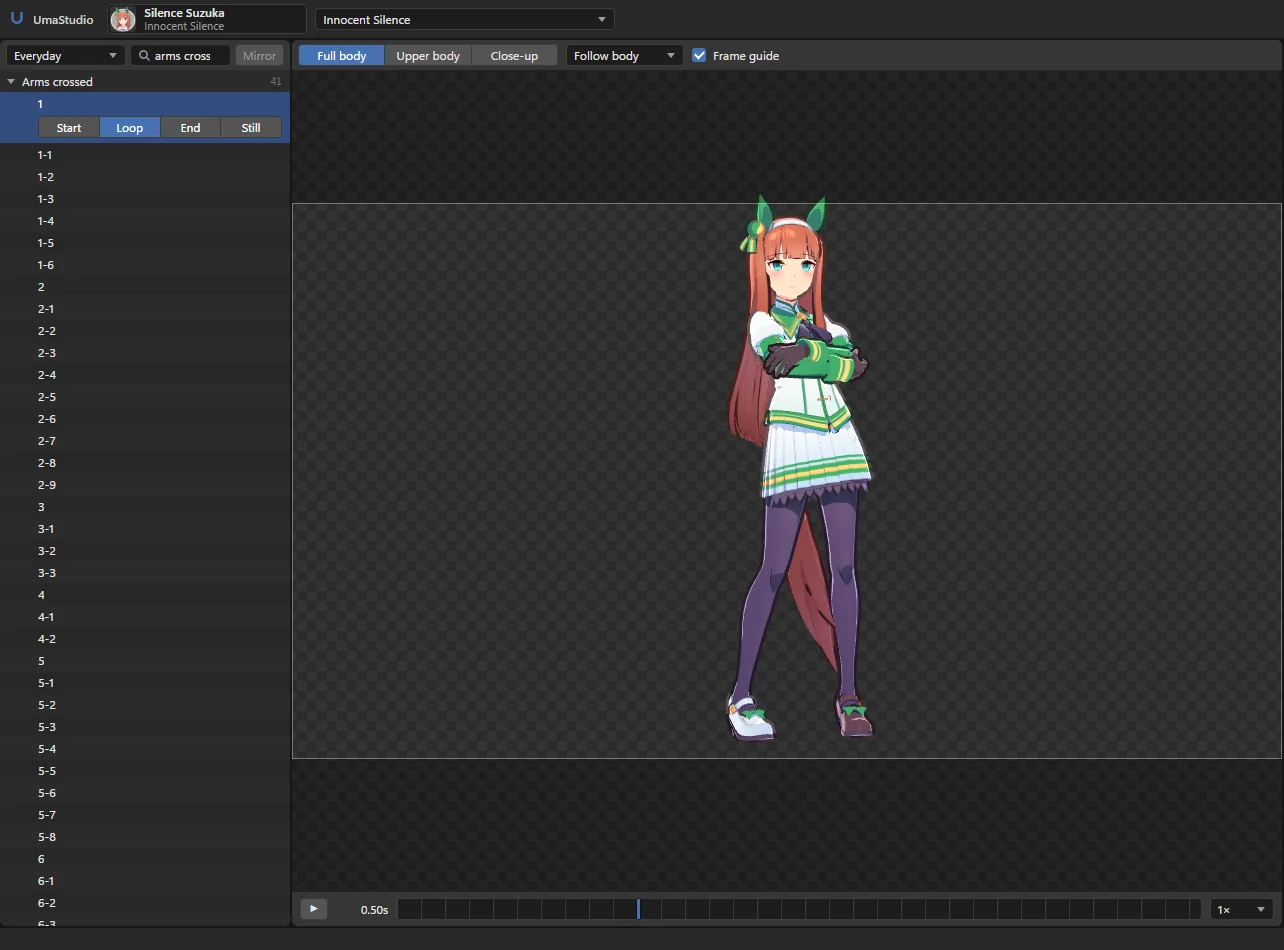
Search in plain English: arms crossed, waving, phone. Mirror also lists the flipped versions. Similar poses are grouped, click a group to open it.
A pose with several parts shows buttons for them: Start, Loop, End, Still, and sometimes reactions or cut-in shots. The timeline under the view plays, pauses and scrubs. Wherever you pause is your pose. The speed menu goes from 0.25× to 2×.
Face
On the Face tab:
- Expression
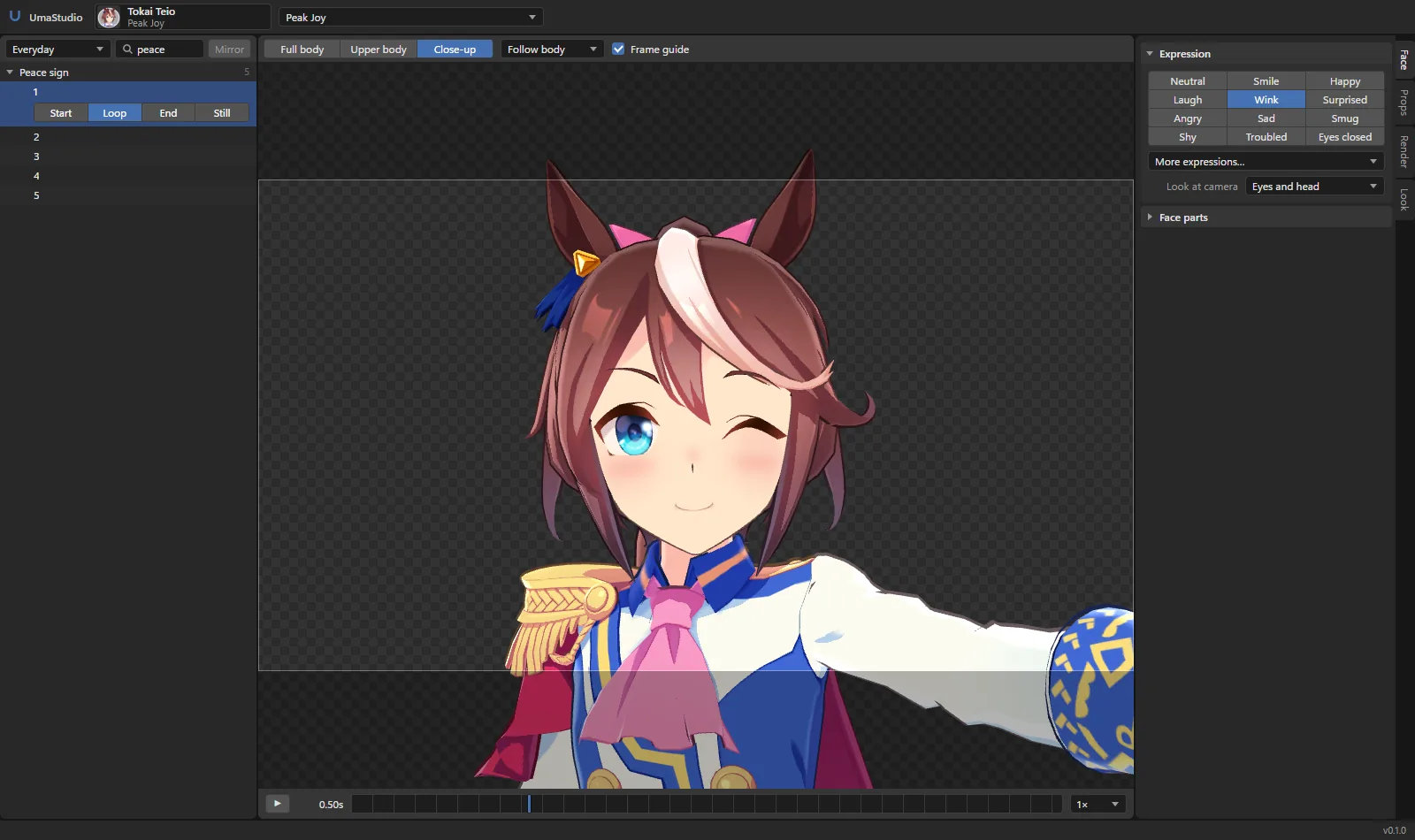
- Neutral, smile, happy, laugh, wink, surprised, angry, sad, smug, shy, troubled, eyes closed. More expressions lists every one in the game.
- Look at camera
- Eyes or Eyes and head. Her eyes stay within what her face allows, the head turns up to 30° from the pose.
- Face parts
- Eyebrows, eyes and mouth one by one, the iris style, and how strong the eye shine is.
Pose by hand
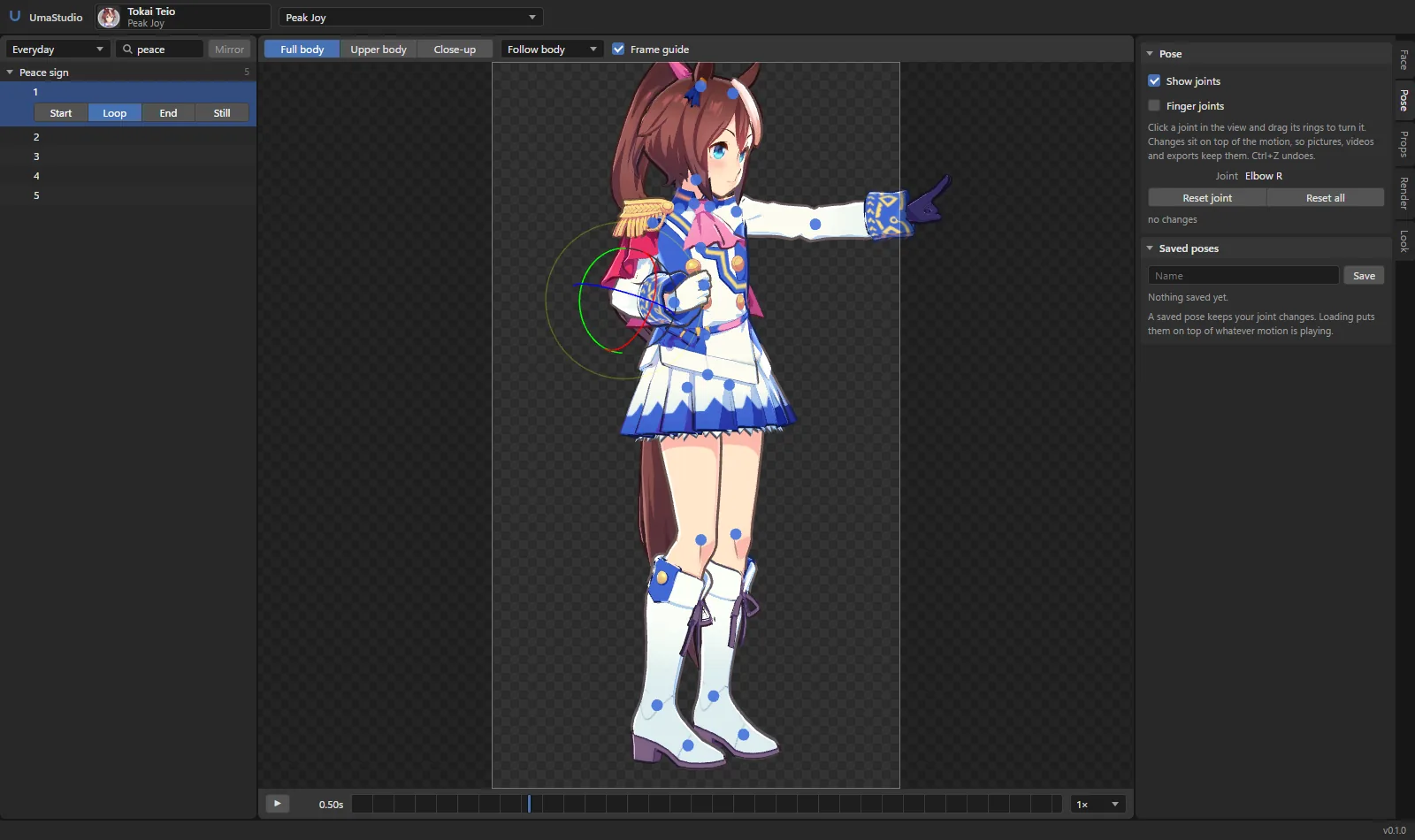
On the Pose tab, turn on Show joints. Click a joint in the view and drag its rings to turn it. Finger joints adds the fingers. Changes sit on top of the motion that is playing, so they stay when you play, record a video or export.
- Reset joint, Reset all
- Back to what the motion does.
- Ctrl+Z
- Undo the last change.
- Saved poses
- Name and save your changes, load them later on top of any motion.
Props
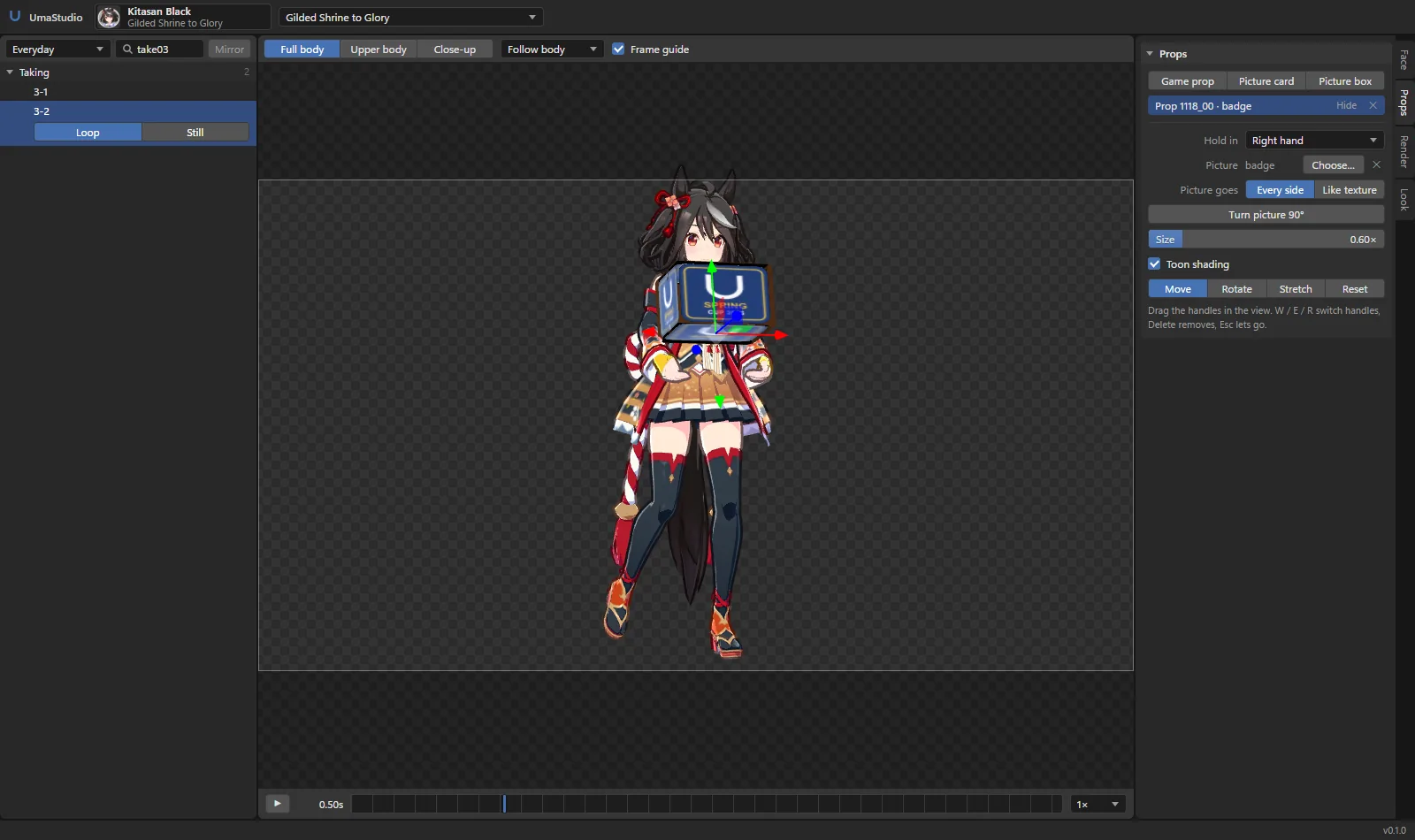
On the Props tab, add one of three kinds:
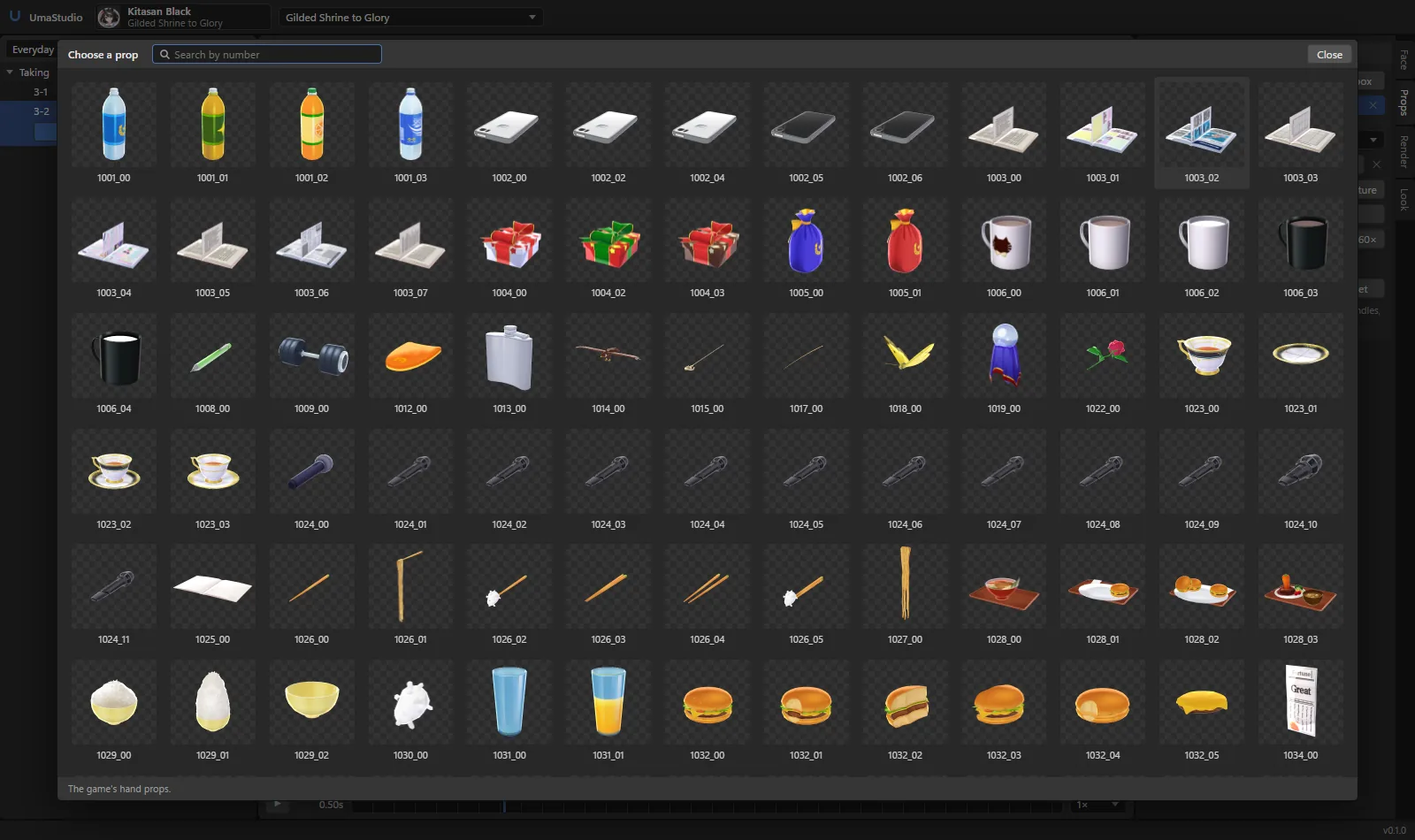
- Game prop
- Opens the game's hand props. Most come with their own grip, so her fingers close around them (Close her hand around it).
- Picture card
- Your picture as a flat card.
- Picture box
- Your picture on every side of a box, as wide as her hands are apart.
Select a prop in the list or click it in the view. Then:
- Hold in
- Right hand, left hand, both hands, head, chest or floor.
- Picture
- Put your picture on a game prop. Every side puts the whole picture on each side, Like texture wraps it the way the prop's own texture does. The ✕ goes back to the prop's own look.
- Turn picture 90°
- For pictures that come out sideways.
- Size
- Scales the prop. Cards have a height, boxes a width, height and depth.
- Toon shading
- Shades the prop like the characters. Turn it off for a flat look.
Drag the handles in the view to place it. Move, Rotate and Stretch switch the handles (W E R), Reset puts it back. Delete removes the selected prop, Esc lets go of it.
Your pictures
Drop a picture anywhere on the window, or paste one with Ctrl+V. With a prop selected it goes on that prop, otherwise it becomes a card she holds.
Pictures are kept in Pictures\UmaStudio\images. Open folder in the picture picker takes you there.
PNG, JPG, WebP and GIF work.
Backgrounds
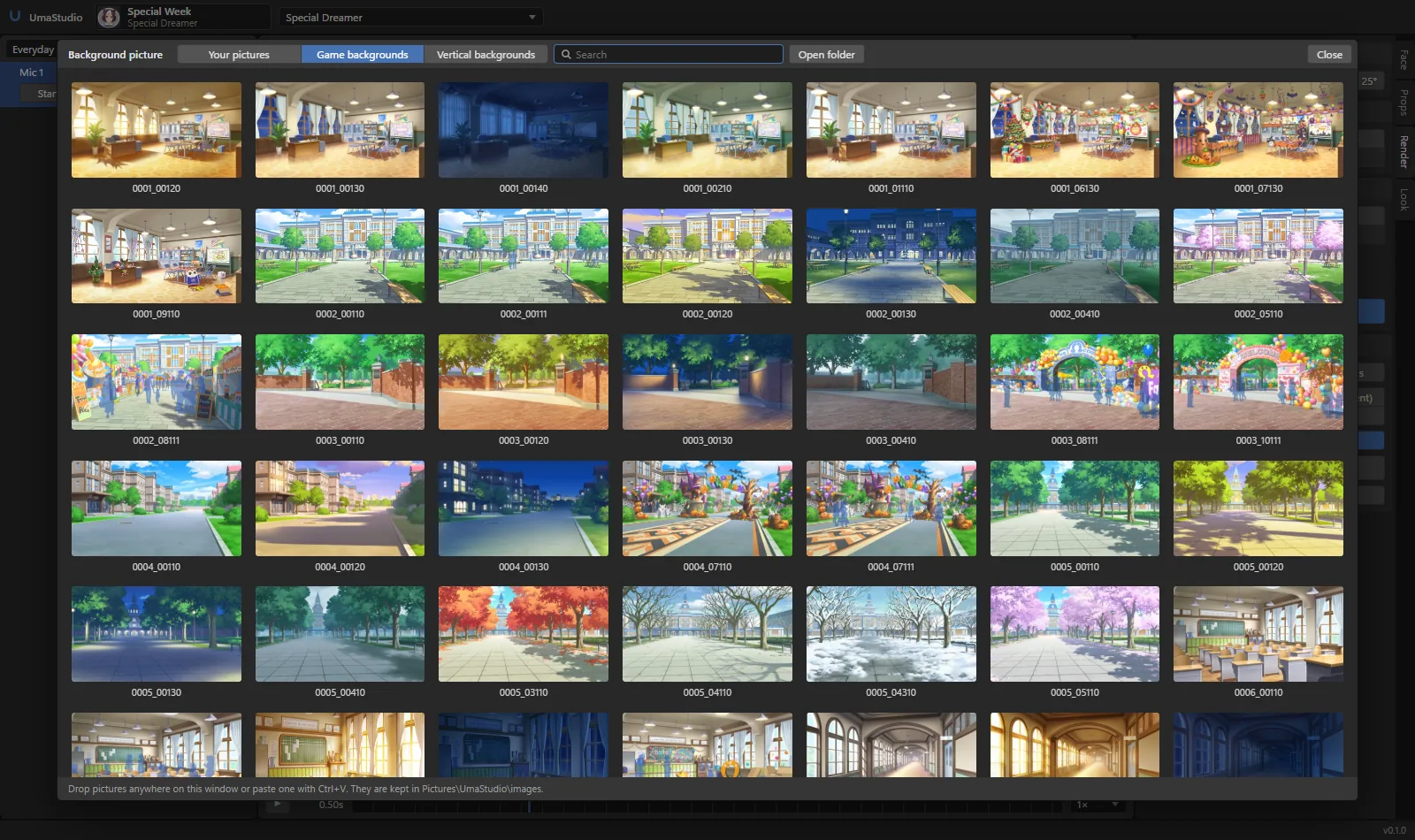
On the Render tab under Background: Transparent, White, Green, any Color, or a Picture.
Picture opens the game's story backgrounds (wide and vertical) or your own pictures. Zoom, Left / right, Up / down and Blur fit it to the frame.
Camera
Full body, Upper body and Close-up above the view frame her. Left drag turns the camera, right drag moves it, the wheel zooms.
Follow keeps the camera on her body, chest or head while she moves, keeping its angle and distance. Frame guide shows what ends up in the saved file. Lens angle on the Render tab goes from a long lens to a wide one, she stays the same size.
Light and style
On the Look tab:
- Light
- Direction and height, or Follows the camera.
- Shadow size
- How much of her is in toon shadow.
- Brightness, Rim light
- Overall brightness and the light edge around her.
- Hair & cloth physics
- The game's own spring physics for hair, ears, tail and clothes.
- Outlines
- On or off, and how thick.
Saving a picture
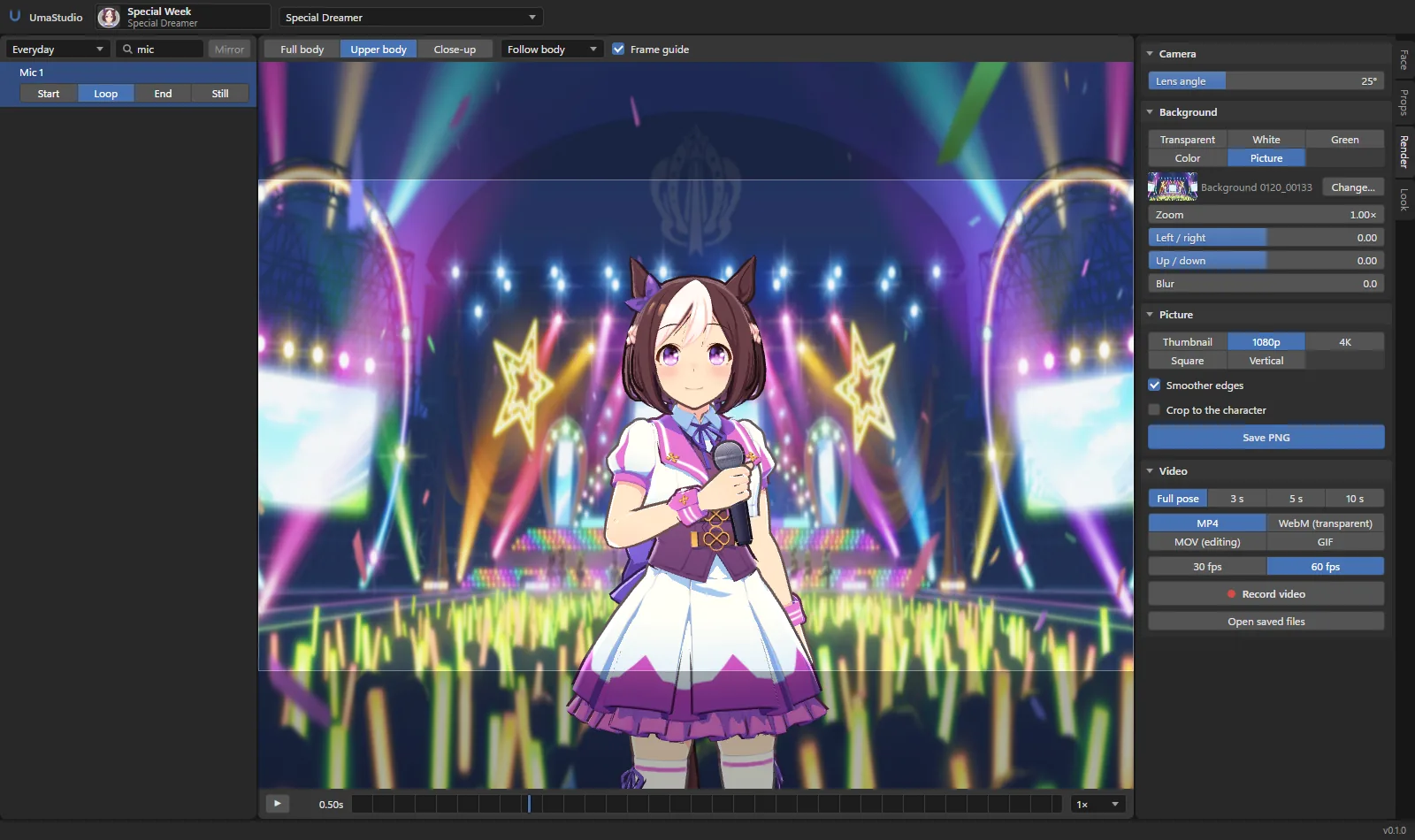
On the Render tab under Picture, pick a size: Thumbnail (1280×720), 1080p, 4K, Square (2048×2048), Vertical (1080×1920), or Custom for your own width and height. Then Save PNG.
- Smoother edges
- Renders bigger and scales down, for cleaner lines.
- Crop to the character
- Cuts the empty space around her. Only with a transparent background.
Recording a video
Under Video, pick the length (Full pose, 3, 5 or 10 seconds), a format and 30 or 60 fps, then Record video.
- MP4
- Plays everywhere. Uses your background, black if it is transparent.
- WebM
- Keeps transparency, for OBS and browsers.
- MOV
- ProRes 4444 with transparency, for Premiere, DaVinci Resolve and After Effects.
- GIF
- Up to 720 px and 30 fps, transparent if the background is.
- PNG frames
- Every frame as a numbered PNG in its own folder, with transparency. Needs no ffmpeg.
Every frame is posed and rendered on its own, physics included, so the video is smooth no matter how fast your PC is.
Video needs ffmpeg. Put ffmpeg.exe next to UmaStudio.exe, or have it on PATH.
Export for Blender
On the Render tab under Model, Export for Blender (.glb) saves her mesh, skeleton and textures and her props as one file. With With the motion on, everything that moves (the motion, face, physics, props and your joint changes) is baked into one animation.
In Blender: File, Import, glTF 2.0. The materials are plain textures; the toon look is UmaStudio's own.
Where files go
- Saved PNGs and videos
Pictures\UmaStudio\renders(Open saved files on the Render tab)- Your pictures
Pictures\UmaStudio\images- Converted characters
Pictures\UmaStudio\viewer-cache. Safe to delete, it is rebuilt when needed.- File list and log
%LOCALAPPDATA%\UmaStudio
Controls
- Left drag
- Turn the camera
- Right drag
- Move the camera
- Wheel
- Zoom
- Space
- Play / pause
- W E R
- Move, rotate, stretch the selected prop
- Delete
- Remove the selected prop
- Esc
- Let go of the prop, close a picker